Professional Setup Guide
How to Install Downloader on Amazon Firestick
Follow this complete step-by-step guide to install the Downloader app,
enable unknown app installation, and prepare your Firestick for IPTV setup.
Before You Start
Make sure your Firestick is connected to the internet and updated to the latest Fire OS version.
This setup usually takes less than 10 minutes.
Step-by-Step Installation
1
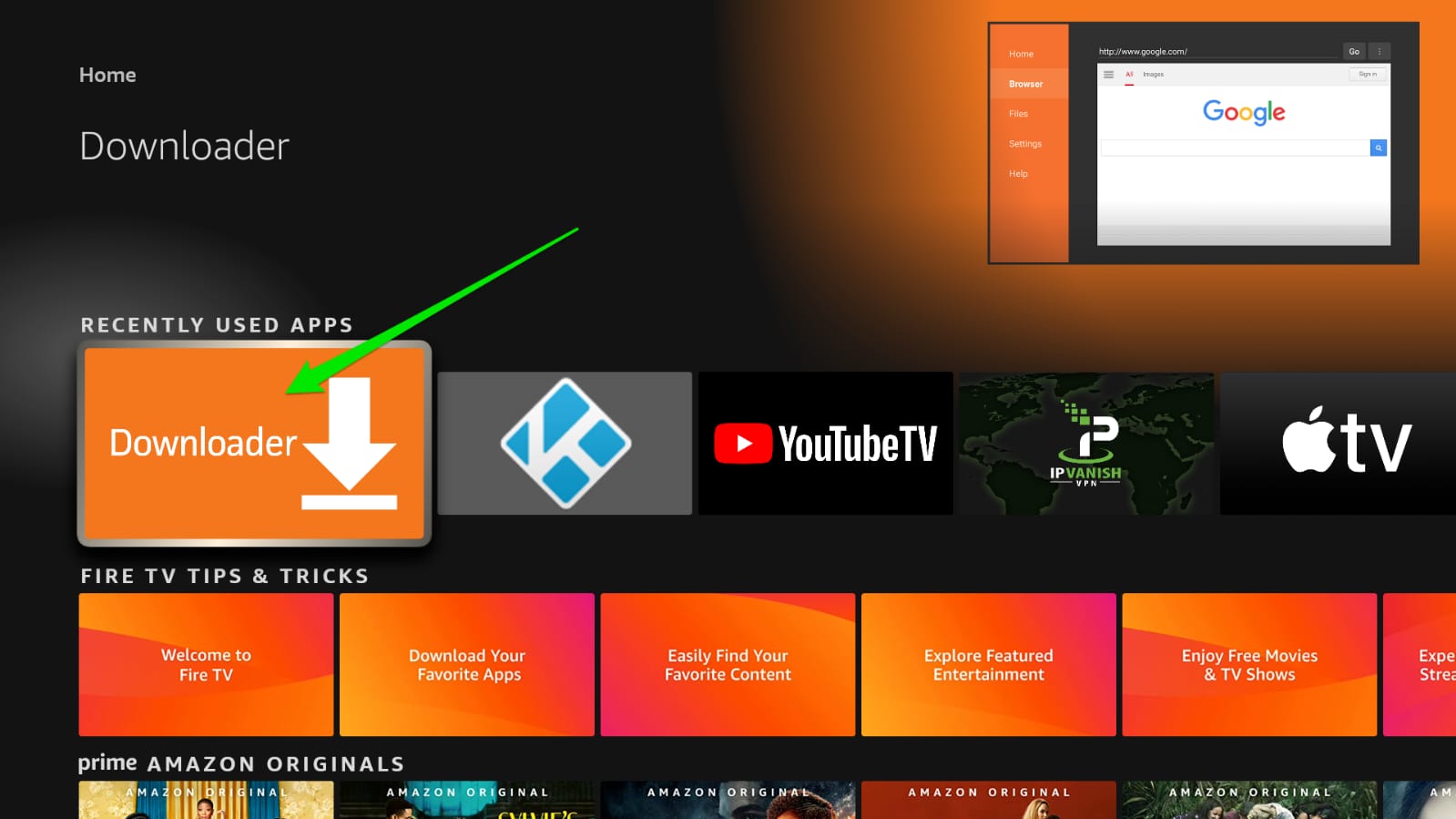
Search for Downloader App
- From the Firestick home screen, click the Find (magnifying glass) icon.
- Type Downloader in search.
- Select the orange app by AFTVnews.
2
Install Downloader
- Open the app page.
- Click Get or Download.
- Wait for installation to complete.
3
Enable Unknown Apps (Required for Sideloading)
- Go to Settings (gear icon).
- Select My Fire TV.
- Open Developer Options.
- Select Install Unknown Apps.
- Set Downloader to ON.
If Developer Options is hidden: go to My Fire TV > About, then click your device name 7 times.
4
Use Downloader App
- Open Downloader.
- Select the URL bar and enter the app URL or numeric download code.
- Download the APK and follow on-screen install prompts.
Troubleshooting Tips
- If Downloader does not appear in search, restart Firestick and try again.
- If installation is blocked, re-check Developer Options and Unknown Apps settings.
- If the download fails, verify internet connection and URL/code accuracy.
Need Help?
If you want a video walkthrough or live help, our support team can guide you step by step.